Documentation
Translation
Translation memory: how it works & TMX import
WebTranslateIt integrates two different translation memories:
- The Global Translation Memory,
- Your Project Translation Memory.
There is nothing to set up. Using the Translation Memories is very easy.
Project Translation Memory
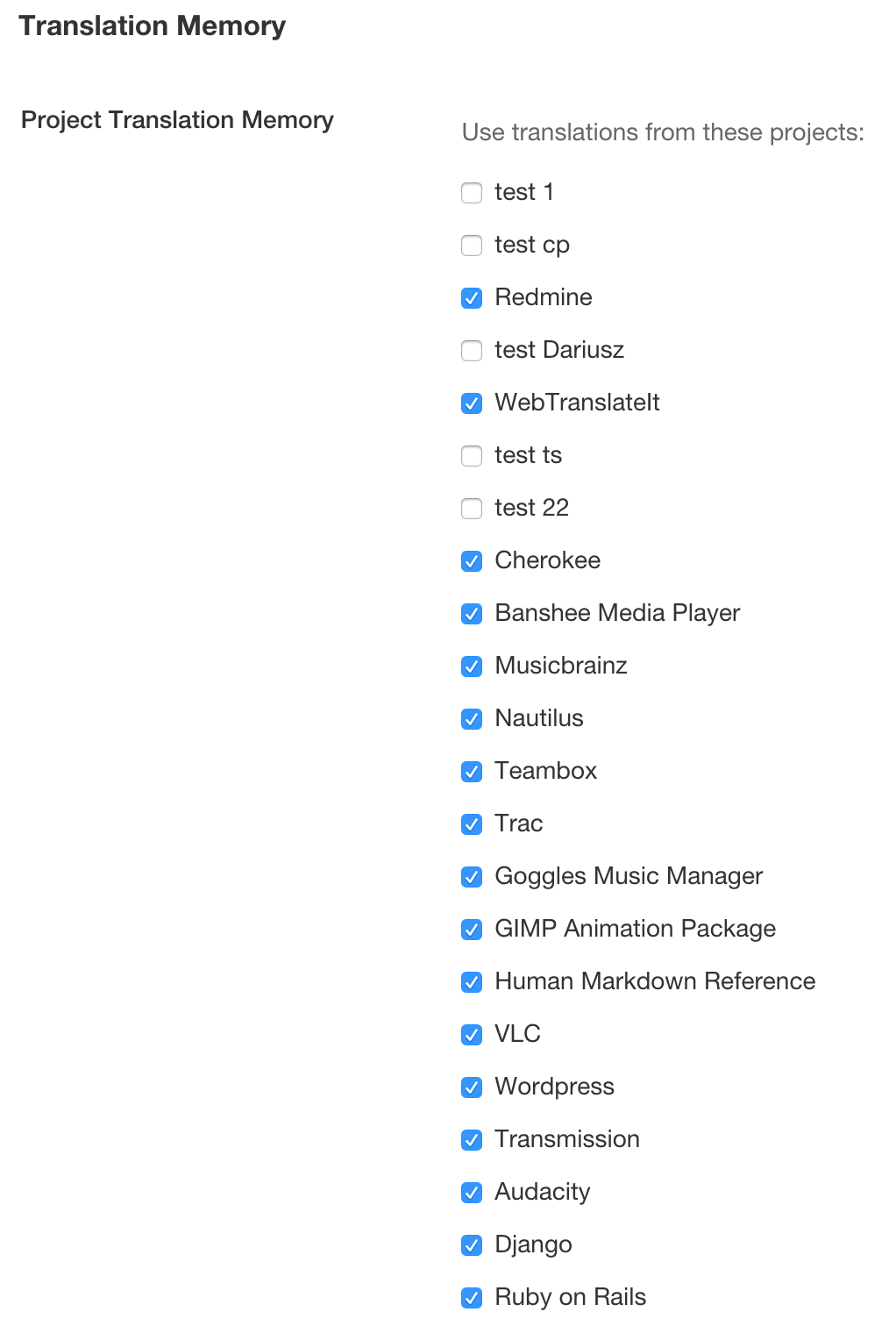
The Project Translation Memory is an automatic translation memory which learns from the translation in your project. The more you translate, the better it gets.
By default, the Project Translation Memory uses translations from your current project, but you can fine-tune the projects to use in input in the Project Settings, under the “Translation Resources sub-tab”.
Global Translation Memory
The Global Translation Memory is an automatic translation memory using all the project which choose to contribute to it. To date, the Global Translation Memory contains more than 24 million translations.
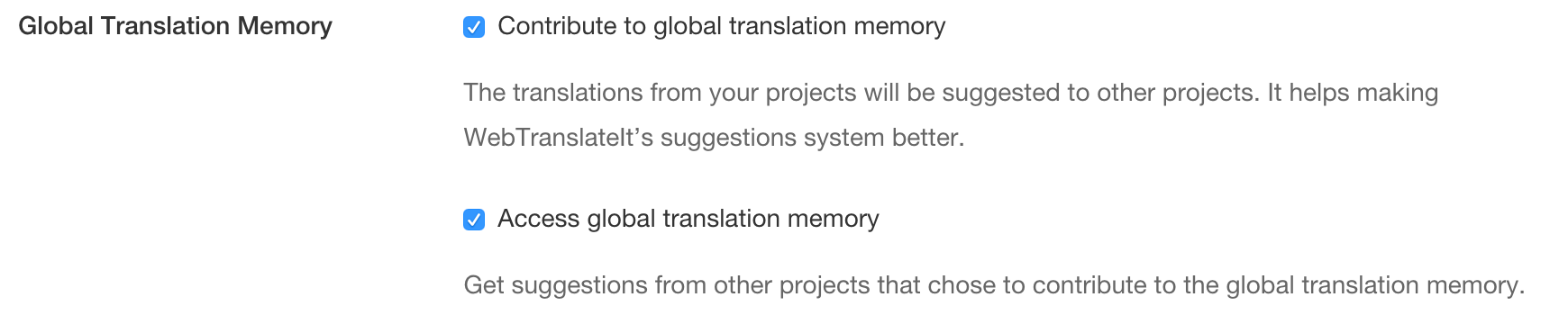
If you’d like to contribute or access the Global Translation Memory, then check the setting in the project settings.
Using the Translation Memory
The Translation Memory fills up automatically and suggestions automatically load up when you enter a segment.
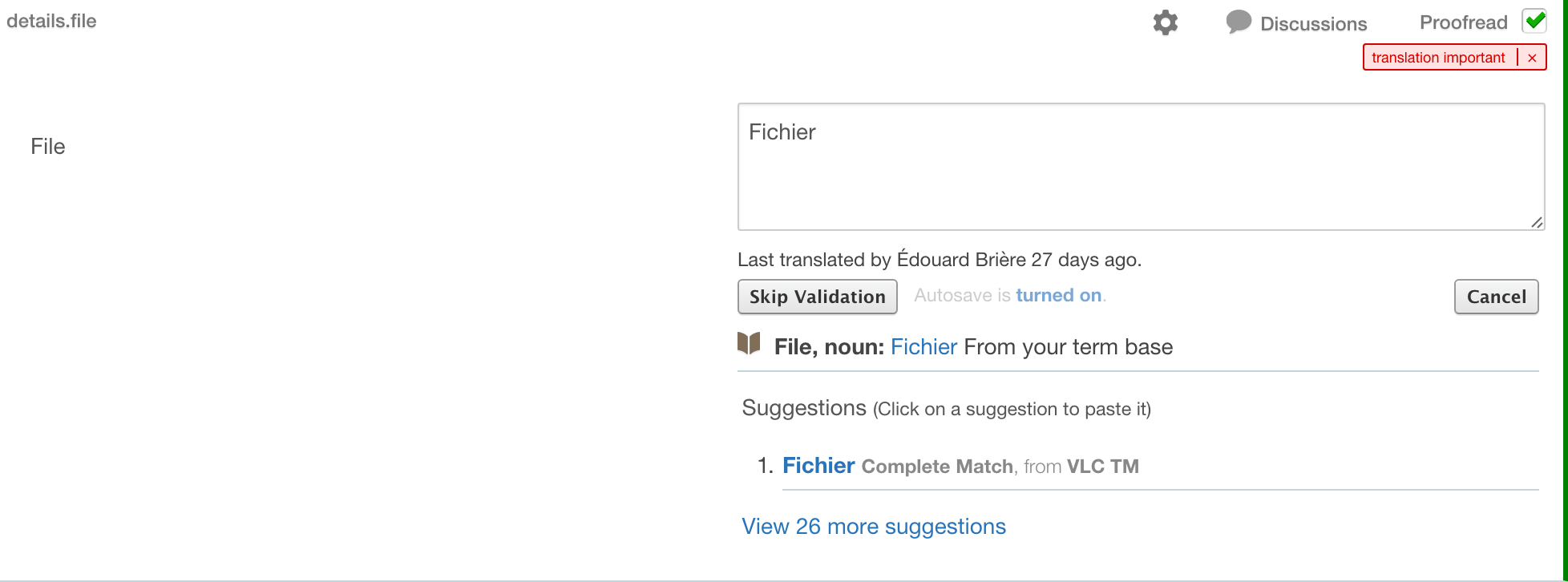
In the following example, we’ve got one Complete Match (or 100% match) from the Global Translation Memory. Click on the suggestion to paste it to the translation box.
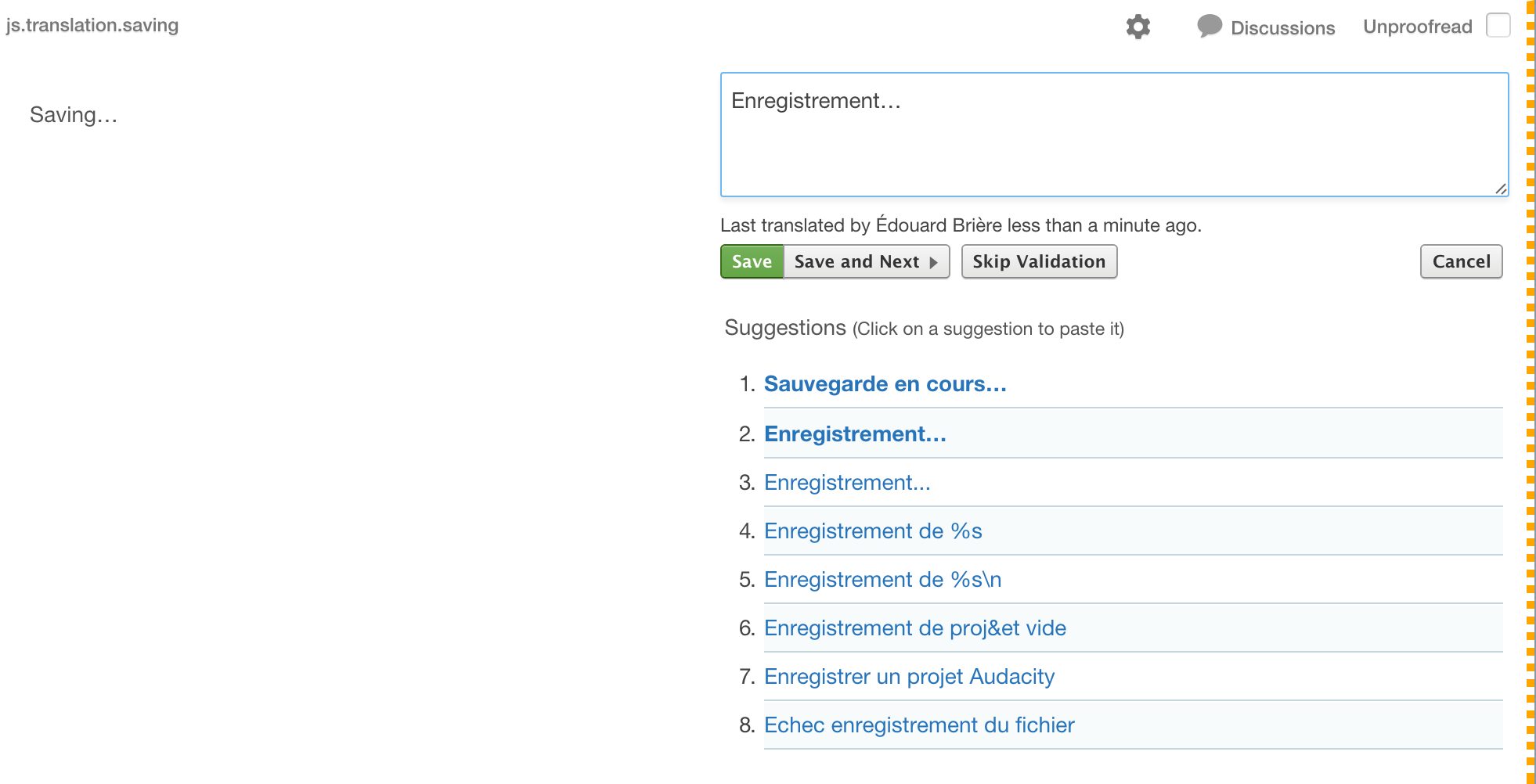
In this other example, we’ve got several matches from the Global Translation Memory.
You can also get suggestions from different Machine Translation engines by configuring them. Learn more about it in Machine Translation.
Tuning How Many Suggestions You Get
Not everyone wants the same thing from the Translation Memory. A translator working on a large, repetitive product wants every near-miss they can get. A proofreader checking finished work wants to see only exact matches, because a half-relevant suggestion is just noise.
The Translation Memory Fuzziness slider controls this. You will find it in the Suggestions panel of the toolbar at the bottom of the translation interface, and again in your personal Settings.
The slider runs from Fuzzy to Exact over five positions. Moving it towards Fuzzy shows more suggestions, including loose ones; moving it towards Exact shows fewer, more precise ones. The last position, Complete Match, shows only suggestions whose source text matches the segment exactly.
The default sits in the middle, which suits most translation work. If you find yourself ignoring most of what the Translation Memory offers, move it towards Exact; if the panel is often empty on a project you know contains similar wording, move it towards Fuzzy.
Two things are worth knowing:
- This is a personal setting, not a project one. Changing it affects what you see, in every project you work on, and no one else’s view.
- It only filters Translation Memory suggestions. Machine translation suggestions are unaffected.
To switch Translation Memory suggestions off altogether, untick Translation Memory in the same Suggestions panel.

Importing an existing Translation Memory to WebTranslateIt
WebTranslateIt supports importing a Translation Memory exported as a TMX file. To do so, create a new project, setup the language pairs and upload your TMX files. Once this is done, configure your working project Translation Memory to use the Translation Memory of the project you just created.
Next Up: Concordance Search. Search your existing translations to see how a word or phrase has already been translated… »